Commercial background

Replace a Product Background with AI

A product photo should quickly explain what is being sold. AI helps to move the item from a gray or home background into a clean catalog scene, interior or promotional environment.

Replace a Product Background with AI
Replace a Product Background with AI: before
Replace a Product Background with AI: after
before after

What is important for a product photo

The main object should be large, sharp and not merge with the background. The better you can see the shape, edges and material, the easier it is to preserve the product without distortion.

For the catalog, ask for a pure white or light gray background. For advertising, you can describe the interior, the city stage, table, tiles, soft shadows and natural light.

prompt for the product

  • Keep the product unchanged
  • Replace the background with a clean studio or promo scene
  • Add natural shadow and matching light

How to get a reliable result for commercial background

Start with one clear source image and one main change. Name the face, object, angle or color that must remain unchanged.

For a complex idea, split the work into steps and compare the first result before launching a full series.
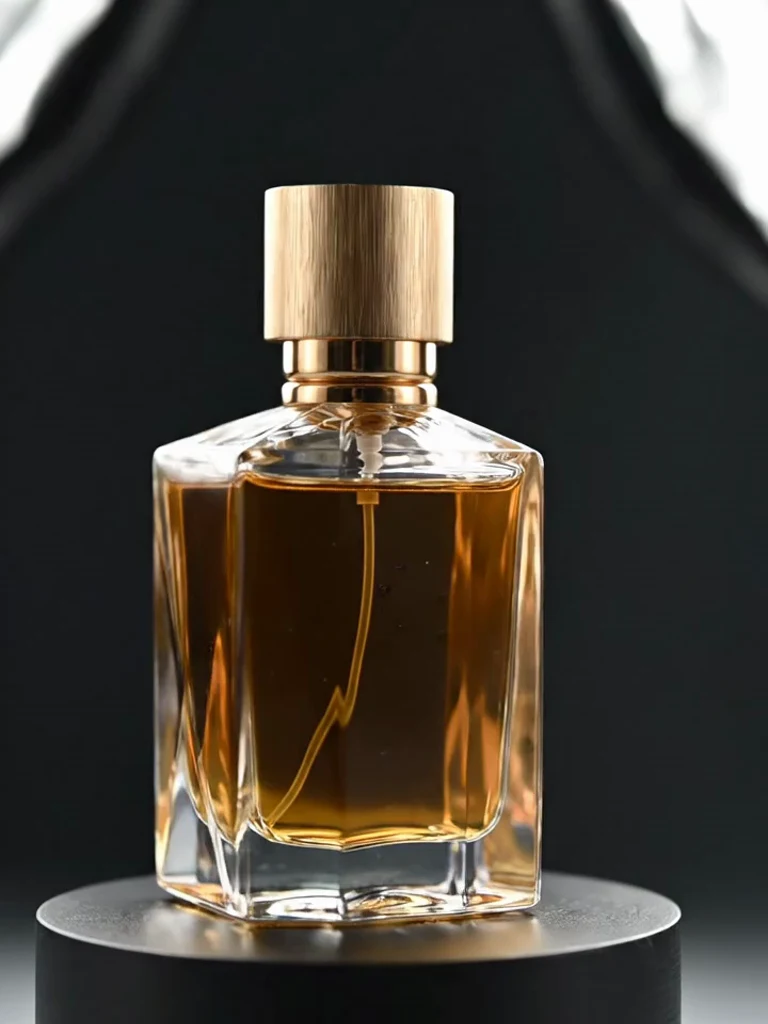
Visual examples

Related workflows worth comparing

The best workflow may be one step away: compare related edits, formats and styles before choosing what to generate.

Before you start

When to start now and when to prepare the photo

Check the source and the task first so the generated result is closer to what you expect.

01

Good fit

one clear task, a well-lit source and a visible main subject

02

Prepare first

crowded scenes, covered faces, tiny text or several changes in one request

03

Best first run

one source, one scenario and a quick review before creating more versions

Prompt builder

A prompt formula you can adapt

A strong prompt does not need to be long. Name the outcome, the constraints and the details that must not change.

Formula

Create [result] for [purpose]. Keep [important details], change only [target], and avoid [unwanted changes].

Example

Create commercial background from this photo. Preserve identity and proportions, change only the requested scene, and keep the result natural.

Best use cases

When this workflow is useful

Use it when you want a clear visual result without learning prompt engineering or building a workflow from scratch.

Quick test

see the first result on your own photo before making a series

Ready to publish

prepare a profile image, post, story, product card or channel visual

Controlled edit

preserve identity, product shape, angle or style while changing one element

Mistakes

Common mistakes that weaken the result

Choose one source and one scenario. If the first result is close, create variations; if not, simplify the task and state what must stay unchanged.

Too many changesGive one generation one main job instead of combining unrelated edits.
No protected detailsExplicitly name the face, object, logo, pose or color that must remain unchanged.
Weak source imageBlur, poor light and a very small subject leave too much for the model to guess.
FAQ

Quick answers before you start

Can the first result be guaranteed?

No. The output depends on the source, the task and model limitations. A clear image and one focused change improve the odds.

Will I see the cost before generation?

Yes. The current generation terms and cost are shown in the product before you start.

What improves AI photo quality?

Good light, a clearly visible subject, a concise request and an explicit list of details that must remain unchanged.

Related workflows

Keep exploring

Telegram-first

Try TrendMe AI Studio on your own photo

Open current trends, choose an effect and use it on your photo. The product makes sense as soon as you see the first result.

Enter AI StudioOpen bot