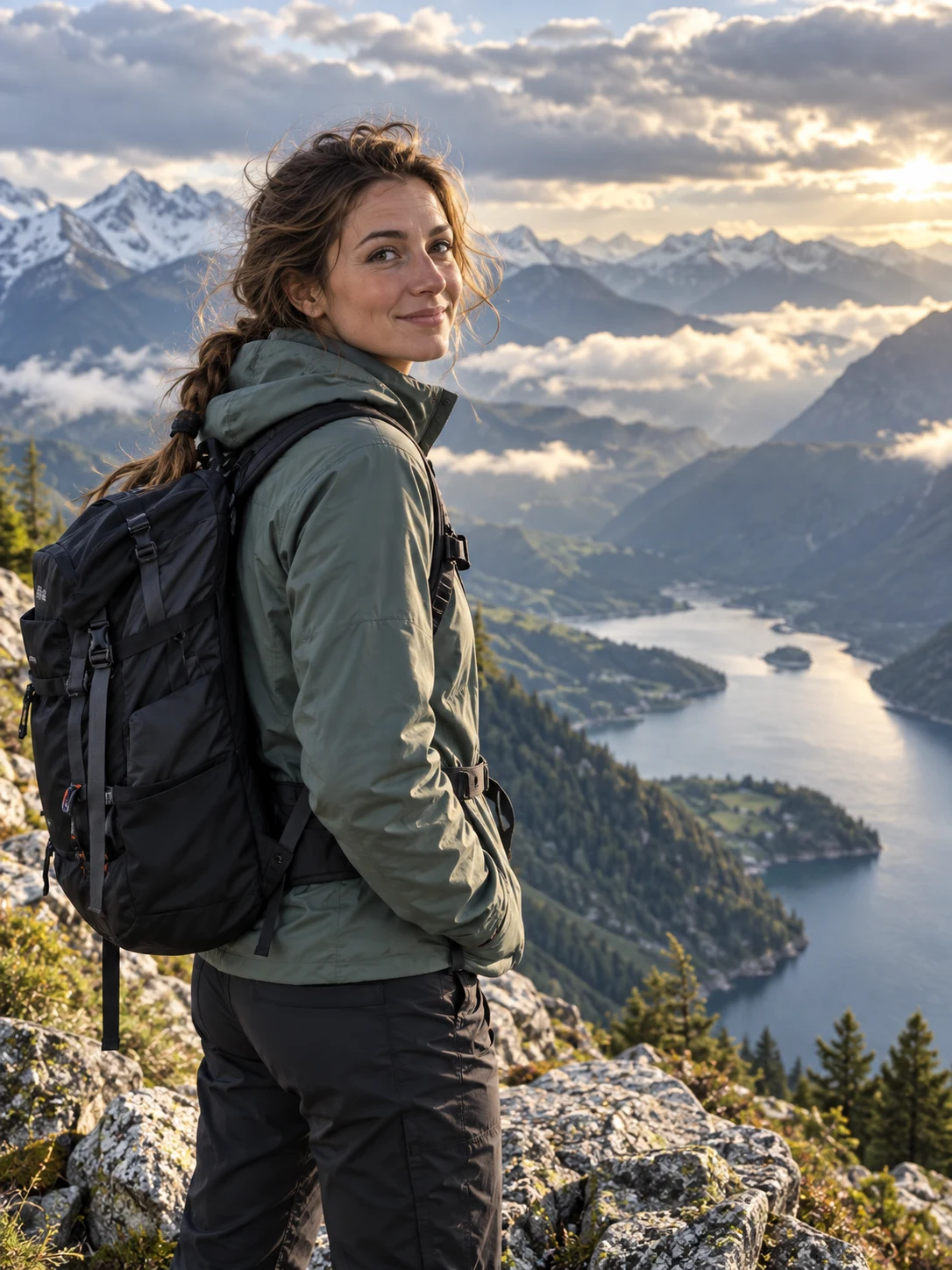
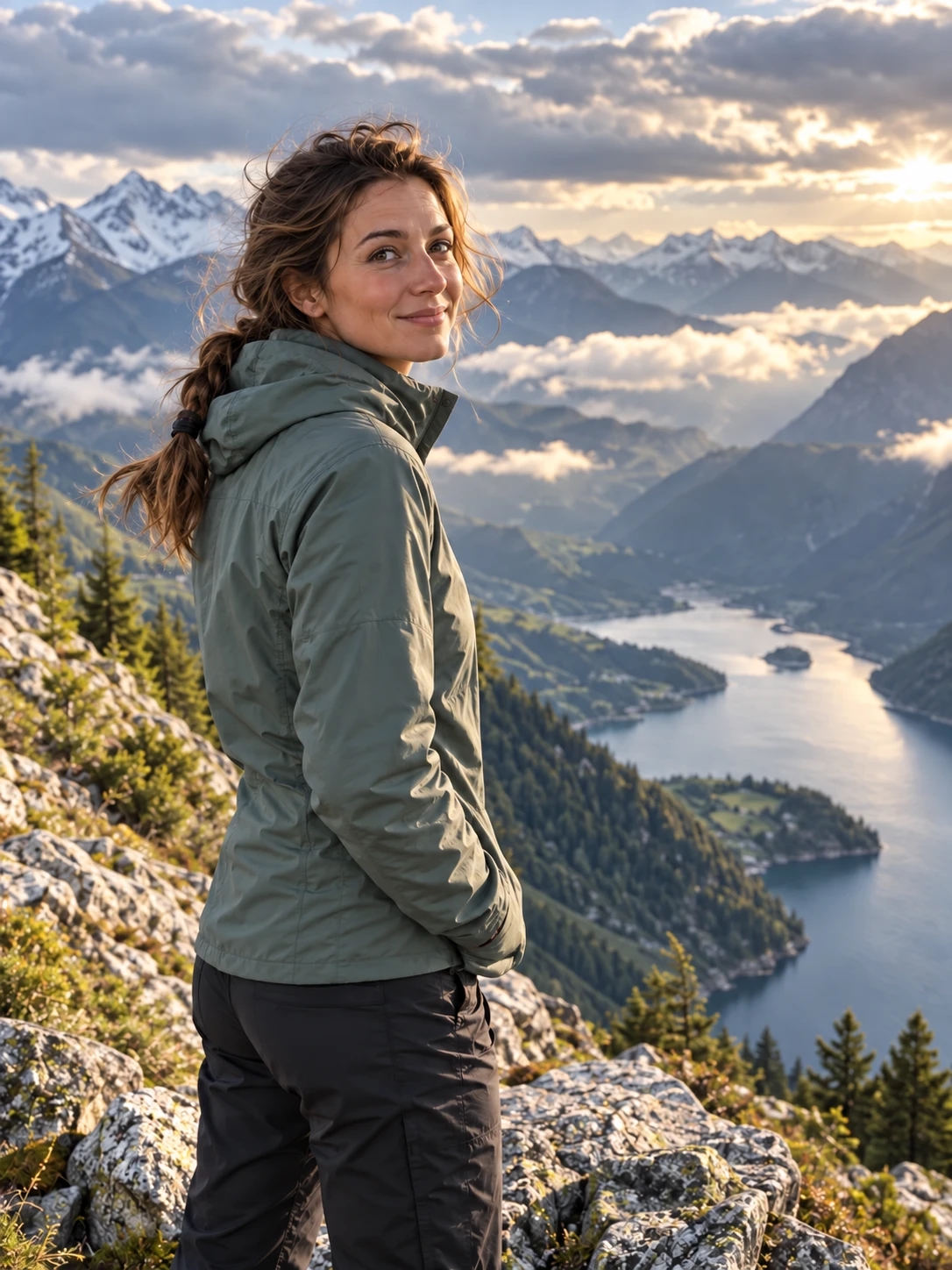
Paint precisely over the area that should be removed.
NO BLANK PROMPT
The settings are already prepared
Open the ready-made tool in Studio, upload your source image, choose an option and review the setup before starting.
The full-size editor and brush control support small details.
The source frame is preserved and only the mask is reconstructed.
HOW TO START
From source photo to a downloadable file
- 1Upload a photo
It opens in the editor without cropping.
- 2Paint over the object
Change brush size or clear the mask without replacing the photo.
- 3Run removal
The model reconstructs the selected area from the surrounding scene.
Open the exact tool you need
If you are not signed in, the selected workflow will open after authentication.
BEFORE YOU START
What affects the result
No workflow produces an identical result from every source image. These checks improve the chance of getting a usable file on the first run.
- Cover the complete object without painting over unrelated facial or product details.
- Large objects hiding unique details are harder to reconstruct convincingly.
- Only remove watermarks from material you have the right to edit.
QUICK ANSWERS
Questions before using the tool
Do I have to describe the object?
No. The brush mask is the primary control.
Can I change brush size?
Yes. The slider is directly below the image.
Why use a mask?
A precise mask reduces unwanted changes outside the selected area.
TrendMe Studio
No need to build a prompt from scratch
Choose a ready-made tool, upload your photo and download the finished file.